01
Envelope Geometry
+ Systems Alignment
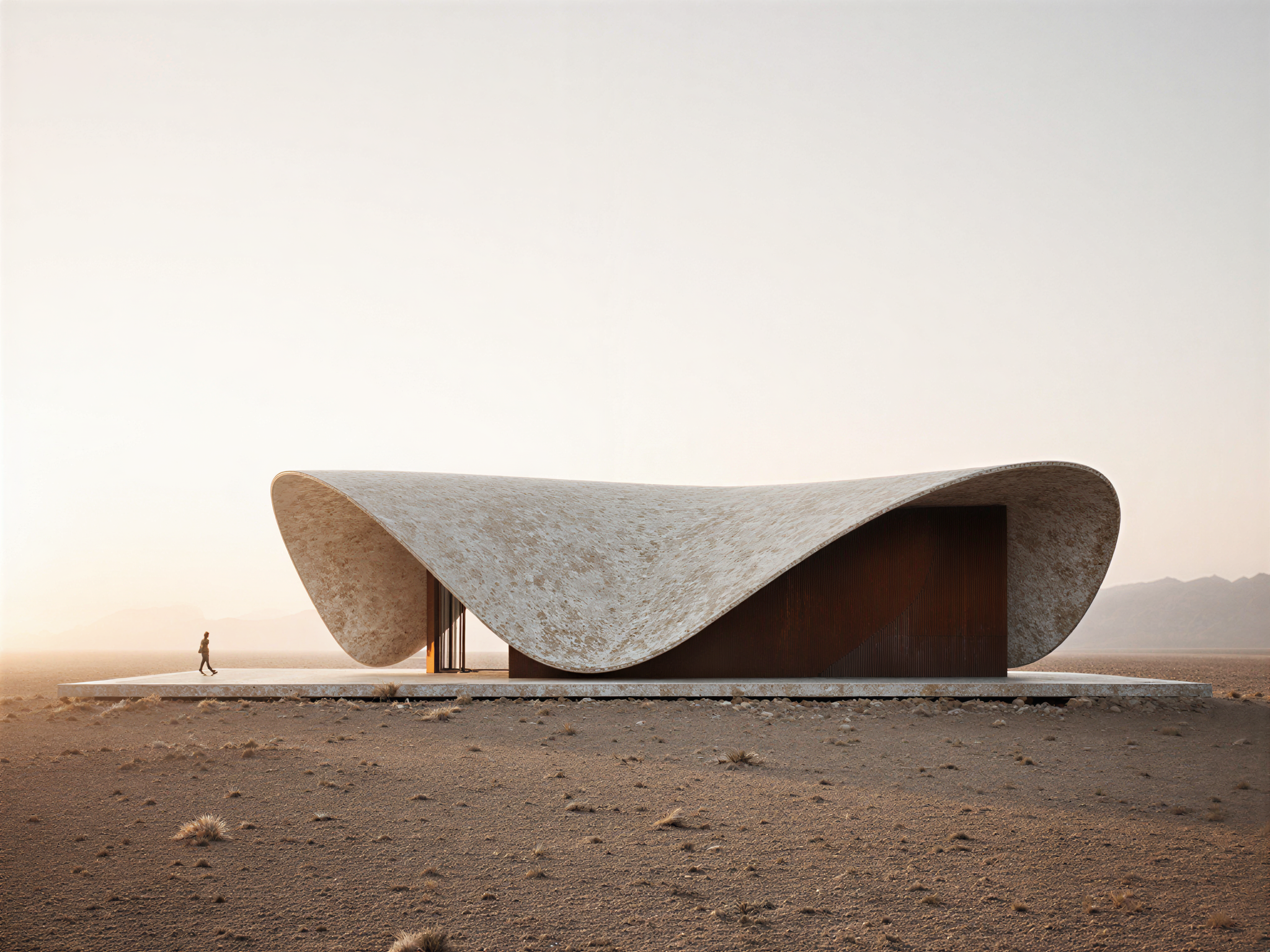
Form, structure and façade systems resolved together — from global massing logic through to panel geometry, joint strategy and fabrication sequence.

Atelier Designa provides specialist advisory services in complex building envelopes, façades, and geometry. We are typically engaged early — before geometry, systems, or procurement decisions are locked in.
Design intent begins clearly. But as form meets structure, envelope meets performance, and fabrication meets programme — misalignment accumulates. Risk compounds in silence.
We clarify the relationships between systems before they become conflicts. Coherence is not accidental. It is the result of deliberate coordination at the right moment.
We work across the full span of early design — from global geometry to detail resolution — ensuring that decisions made in concept survive the realities of systems integration and delivery.
Form, structure and façade systems resolved together — from global massing logic through to panel geometry, joint strategy and fabrication sequence.
Climate, solar geometry and site forces integrated into early design decisions — so performance is designed in from the start, not retrofitted later.
Translating design intent into decisions that survive procurement, specialist engagement and construction. Early buildable logic reduces programme risk.
The capacity to shape a project diminishes rapidly as design progresses. Structural systems lock. Envelope strategies crystallise. Procurement begins.
We operate at the critical window — early enough to shape decisions, late enough to act on real project data. We work inside the team, not as an external observer.
We work across the project team — with whoever carries the risk of envelope and geometry decisions not being resolved at the right time.
Design teams with complex envelope ambitions — needing the geometry, systems logic and fabrication thinking to make the design buildable without losing design intent.
Project proponents managing procurement risk on complex buildings — engaging us early to de-risk envelope specifications before specialist contractors are appointed.
Structural and facade engineers coordinating with design intent — where geometry, load paths and envelope interfaces need to be aligned before documentation locks.
Facade and cladding specialists tendering or delivering complex envelopes — needing buildable geometry and panel logic that reflects real fabrication and installation constraints.
Delivery teams managing programme and cost risk — where unresolved geometry or system conflicts are threatening schedule, procurement sequencing, or design freeze.
Head contractors on complex envelopes managing subcontractor interfaces — where the gap between design documentation and buildable reality needs to be closed before construction begins.
Role delivered as part of the Populous project team. Envelope and roof geometry development; computational design leadership.
View Case Study →
Hong Kong · Major Stadium · 2018–2021
≈ 50,000 seats · AUD $2bn
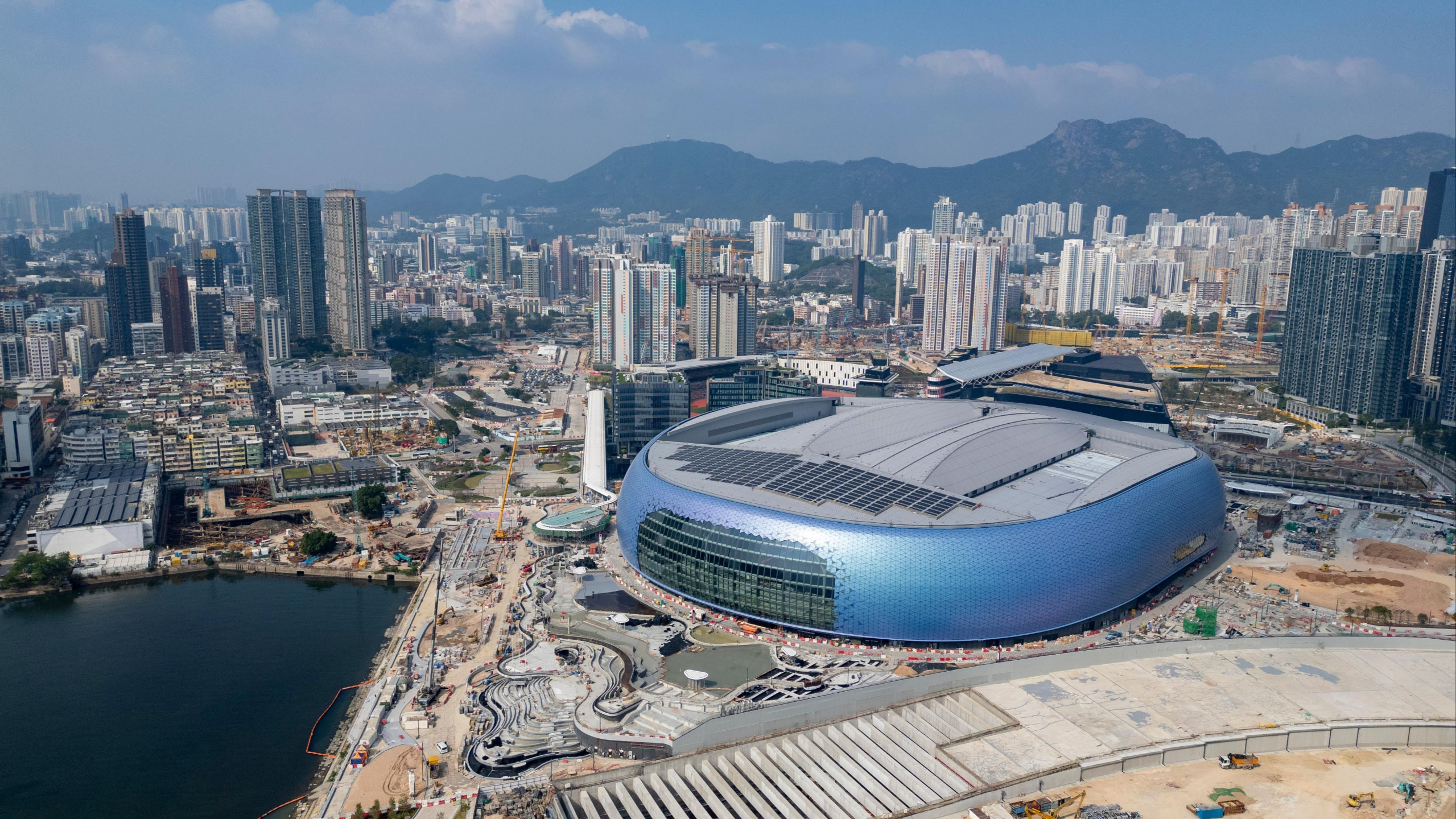
A 50,000-seat flagship sports precinct requiring full envelope and roof geometry resolution across structure, façade systems, and fabrication — at a scale and complexity that placed it among the most demanding stadium envelopes delivered at that time.
Retractable roof structure · Façade panel optimisation · Envelope geometry rationalisation · Multi-disciplinary BIM coordination
Parametric geometry development and façade panel logic resolved computationally across all envelope packages — coordinating design intent with structural and fabrication constraints from concept through detailed design.
Geometry and system resolution at this stage directly de-risked fabrication and construction across all envelope packages. The precinct is one of the world's leading pieces of stadium infrastructure. Opens 2025.
We are most effective before systems are locked — while the cost of change is still manageable and design intent is still shapeable.
Before geometry is fixed and before systems are selected. When the design has ambition but no technical framework.
When façade, structure and environmental systems are being coordinated for the first time and misalignment is starting to emerge.
Before façade or specialist contractors are engaged. When the brief needs to be technically grounded to attract the right partners.
When design time is compressed and decisions must be made quickly with confidence. We compress the alignment cycle without reducing quality.
We do not replace your consultants. We create the conditions for them to align. Short engagements, defined outcomes, no ambiguity about scope or intent.
We map the current state of geometry, systems and team alignment. We identify where conflicts exist and where leverage is highest on this specific project.
We work directly within the project team to resolve misalignments, establish a coherent geometric framework, and build shared decision logic across disciplines.
We leave the project with resolved geometry, clear documentation, and a technical framework the team can carry forward into procurement and construction.
"His work is at a global standard of excellence, and he possesses expert knowledge in computational design, fabrication, analytical tools and representation that is highly desirable."Chris Knapp PhD / RAIA · Research Director, Building 4.0 CRC · Director, Studio Workshop Architects · Adjunct Professor, Monash University
Courses built at the intersection of design thinking and computational practice. Practical tools, applied directly to architectural work.
Learn how to integrate AI tools into your architectural workflow using Photoshop. Visualise design intent faster, communicate ideas more precisely, and work at the speed modern projects demand.
View courseComputational design, envelope strategy, and environmental performance — built for architects who work on complex projects.
Atelier Designa works on a small number of projects at any one time. Services are delivered on a phase-based advisory basis — decision support, not production. If you are in early design and facing systems complexity, we would like to hear from you.

Get started today before this once in a lifetime opportunity expires.